 ← Back to Blog
Top Shopify Development Mistakes That Kill Your SEO Rankings
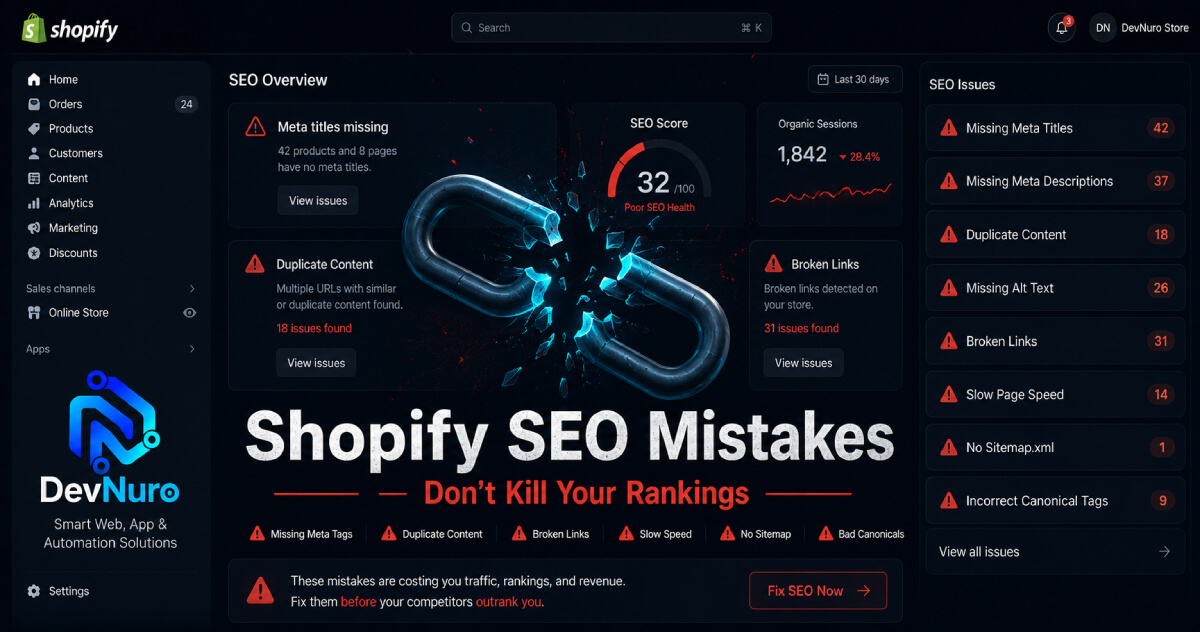
A detailed breakdown of the most common Shopify development mistakes that silently destroy your search rankings — and how to fix them before they cost you traffic and revenue.
Why Shopify SEO Mistakes Are Costly
Shopify is a powerful e-commerce platform, but it has specific technical quirks that can quietly destroy your SEO rankings if you are not careful. Unlike WordPress, where you have full control over every technical SEO detail, Shopify imposes certain limitations that require careful navigation.
Many store owners only realize something is wrong when their traffic drops, their product pages stop ranking, or Google Search Console starts showing indexing errors. By that point, the damage has already been compounding for weeks or months. The good news is that most Shopify SEO mistakes are preventable once you know what to look for.
In this guide, we cover the five most damaging Shopify development mistakes we have seen across dozens of stores — and how to fix each one.
1. The "App for Everything" Trap
Shopify's App Store makes it tempting to install an app for every feature you need. Reviews app, popup app, upsell app, email app, SEO app, social feed app, currency converter app, back-in-stock app — before you know it, your store is running 20+ apps, and your page speed is in free fall.
Every app you install adds JavaScript, CSS, and often makes external API calls that block page rendering. Google's Core Web Vitals penalize slow pages, and app bloat is the single biggest contributor to poor Shopify speed scores.
How to Fix It
- Audit every app in your store. Ask: "What specific function does this app serve, and can I achieve the same result with a lighter alternative or custom code?"
- Check the performance impact of each app using tools like Debug Bear or Chrome Lighthouse.
- Replace heavy apps with lighter alternatives where possible. For example, replace a full page builder app with native Shopify 2.0 sections.
- Disable app embeds that do not need to run on every page. Go to Online Store > Themes > Customize > Theme settings > App embeds and disable unnecessary ones.
- Consider custom development instead of apps for critical features. A custom-coded solution is almost always faster than an off-the-shelf app.
DevNuro Insight: We audited a Shopify store that was running 18 apps. After removing 12 unnecessary ones and replacing 3 heavy apps with custom Liquid code, the store's mobile PageSpeed score went from 34 to 78, and their conversion rate increased by 22% within four weeks.
2. Duplicate Content and Canonical Tag Issues
Shopify's URL structure creates duplicate content problems by default. The same product page can be accessed via multiple URLs:
/products/product-name/collections/all/products/product-name/collections/featured/products/product-name/collections/category-name/products/product-name
Each of these URLs serves the same content, which confuses search engines and dilutes your ranking signals. Shopify does add canonical tags automatically, but they are not always set up correctly — especially after theme customizations or migrations.
How to Fix It
- Verify that your theme outputs correct canonical tags on every page. View the page source and look for
<link rel="canonical" href="...">. - Ensure product pages canonical to
/products/product-name(not the collection URL). - Use Shopify's built-in canonical URL settings or a SEO app like SEO Manager or Smart SEO to manage canonical tags at scale.
- Avoid using parameters in your URLs (e.g.,
?variant=123) for primary product pages. Use canonical tags to point to the main URL. - Check Google Search Console for duplicate content issues and manually mark the correct canonical where needed.
3. Indexation and Redirect Mismanagement
Indexation issues are one of the most common Shopify SEO problems we encounter. They often stem from theme settings, migrations, or improper account configurations.
The "Noindex" Trap
Shopify themes sometimes include a setting to hide pages from search engines during development. If you or a developer forgets to disable this setting after launch, your entire store can be inadvertently hidden from Google. Check your theme settings under Online Store > Preferences and ensure "Hide page from search engines" is unchecked.
Redirect Disasters After Migration
If you migrated from WooCommerce, Magento, or another platform to Shopify, your old URLs almost certainly changed. Failing to set up proper 301 redirects from your old URLs to your new Shopify URLs is one of the fastest ways to destroy your SEO equity.
Common migration redirect mistakes include:
- Redirecting all old URLs to the homepage instead of the specific matching page
- Using 302 (temporary) redirects instead of 301 (permanent) redirects
- Leaving redirect chains (A → B → C) instead of direct redirects (A → C)
- Missing redirects for old image URLs, category pages, and blog posts
How to Fix It
- Before migrating, map every old URL to its corresponding new Shopify URL.
- Set up 301 redirects in Shopify under Online Store > Navigation > URL Redirects.
- Use a redirect checker tool to verify that all redirects work correctly and there are no chains.
- Monitor Google Search Console for 404 errors after migration and add redirects for any missing URLs.
- If you have more than 1,000 redirects, use a CSV import to avoid manual entry errors.
4. Poor URL Structure and Missing SEO Metadata
Shopify gives you control over your URL structure, page titles, meta descriptions, and alt text — but many store owners neglect these basic SEO elements during development.
URL Structure Issues
By default, Shopify product URLs use the product title, which can include special characters, uppercase letters, and stop words. For example, a product named "Men's Premium Cotton T-Shirt – Navy Blue" might generate a URL like /products/mens-premium-cotton-t-shirt-navy-blue. While functional, this is not optimal for SEO.
Best practices for Shopify URLs:
- Use lowercase, hyphen-separated words
- Keep URLs short and descriptive (remove unnecessary words like "the", "a", "an")
- Avoid special characters that get URL-encoded
- Use SEO-friendly product handles from the start
Missing Meta Descriptions and Title Tags
Shopify auto-generates title tags and meta descriptions based on your product titles and descriptions. These auto-generated tags are often too long, miss keywords, or are duplicated across similar products. Every product page and collection page should have a unique, hand-crafted title tag and meta description.
How to Fix It
- Edit product handles to be short and keyword-rich before publishing.
- Write unique title tags (50-60 characters) and meta descriptions (150-160 characters) for every product and collection.
- Use a SEO app like SEO Manager or Plug in SEO to generate and manage metadata at scale.
- Add descriptive alt text to all product images — this improves accessibility and helps you rank in Google Image Search.
5. Ignoring Core Web Vitals and Mobile Performance
Google's Core Web Vitals are now a direct ranking factor. If your Shopify store fails these metrics — especially on mobile — your rankings will suffer regardless of how good your content is.
Common Performance Killers on Shopify
- Large, unoptimized images: Most Shopify themes serve full-resolution images that destroy LCP (Largest Contentful Paint) scores.
- Unused JavaScript and CSS: Many themes load JavaScript for sections that do not appear on the page, wasting bandwidth and blocking rendering.
- Custom fonts: Loading multiple font weights and formats causes CLS (Cumulative Layout Shift) issues.
- Third-party scripts: Analytics, tracking pixels, chat widgets, and social media embeds all add load time.
How to Fix It
- Compress all product and collection images to under 200KB (use WebP format where supported).
- Lazy load below-the-fold images using the
loading="lazy"attribute. - Minimize the use of custom fonts — limit to two families with
font-display: swap. - Audit third-party scripts and remove any that are not essential. Load remaining scripts with
asyncordefer. - Use Shopify's built-in CDN and consider a caching app like Nitro for advanced performance optimization.
How to Audit Your Shopify Store for SEO Issues
If you suspect your store has SEO issues, here is a quick audit checklist:
- Run a Google Search Console report and check for indexing errors, manual actions, and Core Web Vitals status.
- Test 5–10 product pages with Google PageSpeed Insights and document the scores, LCP, TBT, and CLS values.
- Check your canonical tags on product, collection, and blog pages.
- Review your URL redirects and look for chains, loops, or missing redirects.
- Audit your installed apps and identify any that are heavy or unnecessary.
- Check your theme settings to ensure "Hide page from search engines" is disabled.
- Review your title tags and meta descriptions for length, uniqueness, and keyword targeting.
- Use a crawler like Screaming Frog or Sitebulb to find broken links, duplicate content, and missing metadata.
How DevNuro Can Help
At DevNuro, we have optimized dozens of Shopify stores for SEO and performance. Our services include:
- Comprehensive Shopify SEO audits with prioritized fix recommendations
- Theme optimization for Core Web Vitals compliance and faster page speed
- Migration SEO — proper redirect setup, canonical management, and indexation fixes
- Custom Liquid development to replace heavy apps and reduce bloat
- GA4 and GTM setup with proper ecommerce tracking
Is Your Shopify Store Struggling With SEO?
Let's find and fix the issues holding your rankings back.
We will audit your store and give you a clear action plan to recover lost rankings and improve your organic traffic.
Related Services
Looking for more help with your Shopify store? Explore our services: